

1
Register your entity
Your business is identified by a 19-digit government-issued Entity ID.
2
Register your sender IDs
Each sender ID is linked to an entity and approved individually.
3
Register your templates
Each template is linked to both an entity and a sender ID, and carries a consent type.
DLT applies to SMS sent within India. For international SMS, see
Sender IDs and Templates.
Entity IDs
An Entity ID uniquely identifies your business using a 19-digit government-issued number, verifying its identity for sending SMS through telecom operators under TRAI rules.Add an Entity ID
1
Open the Entity IDs tab
Click DLT, select the Entity IDs tab, and click + Add Entity Id.
2
Enter the details
3
Add
Click Add.
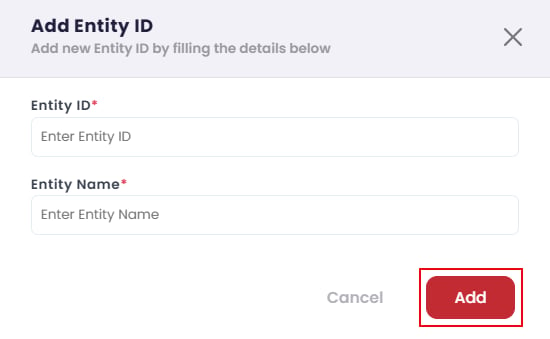
Add Entity ID
View, edit, and delete
Click DLT → Entity IDs → Show Entity Id to list your entities with their ID, name, and status.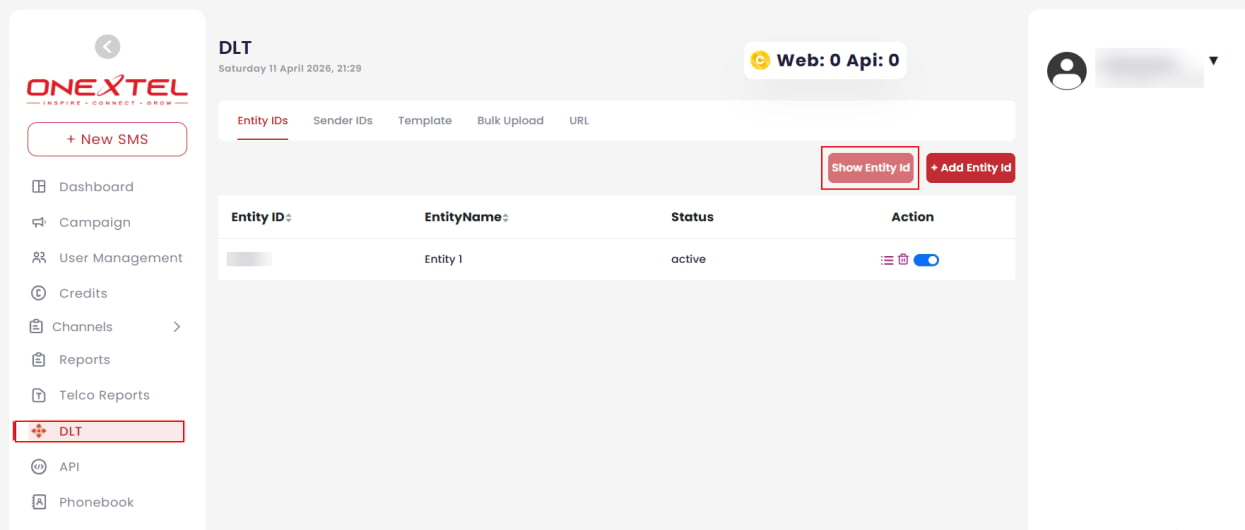
Entity IDs list
Sender IDs
A Sender ID identifies the origin of your messages to recipients, and is also used to filter report data by sender.Add a Sender ID
1
Open the Sender IDs tab
Click DLT, select the Sender IDs tab, and click + Add Sender ID.
2
Enter the Sender ID
Enter the sender ID, then select the Entity Name it belongs to from the dropdown.
3
Set the options
4
Add
Click Add.
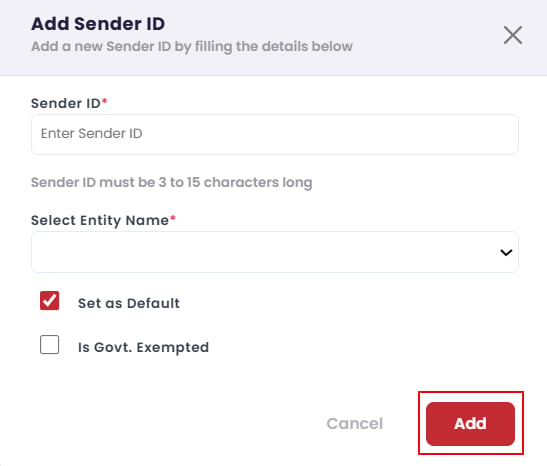
Add Sender ID
The form accepts 3 to 15 characters, but registered Indian sender IDs are six characters. Use
the value exactly as approved on the DLT platform.
View Sender IDs
Click DLT → Show Sender ID. The table shows: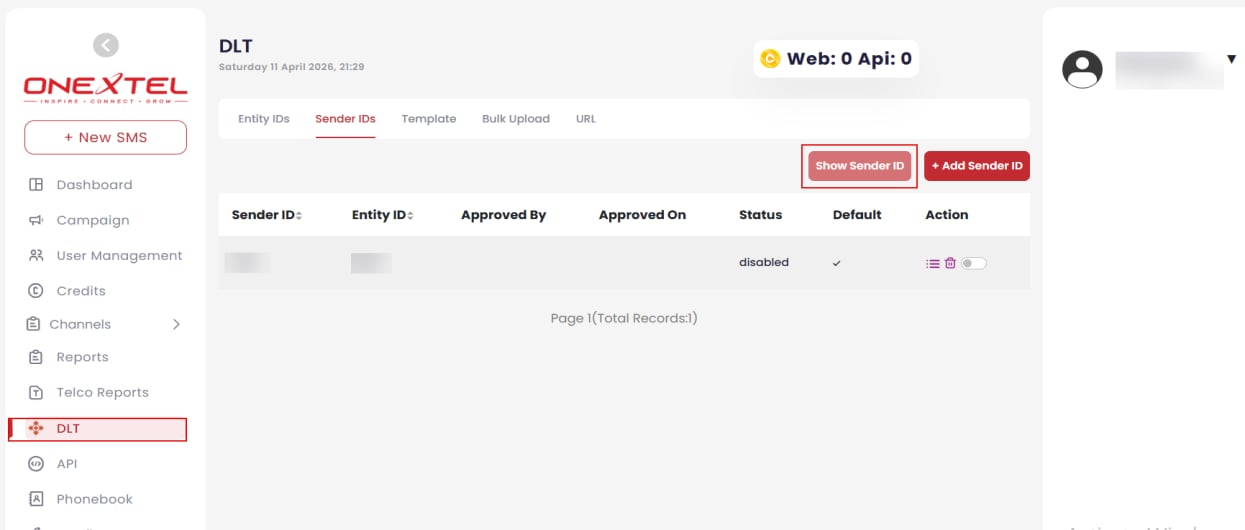
Sender IDs list
A sender ID only works once Status reads
Approved. Adding it here does not approve it —
check the status before building a campaign around it.Edit and delete
Click Show Sender ID, then the Ellipsis icon in the Action column to edit and Update, or the Delete icon and confirm to remove.Templates
Templates are the predefined, approved message formats you are permitted to send. Every DLT template is bound to an entity, a sender ID, and a consent type.Add a template
1
Open the Template tab
Click DLT, select the Template tab, and click + Add Template.
2
Enter the details
3
Add
Click Add.
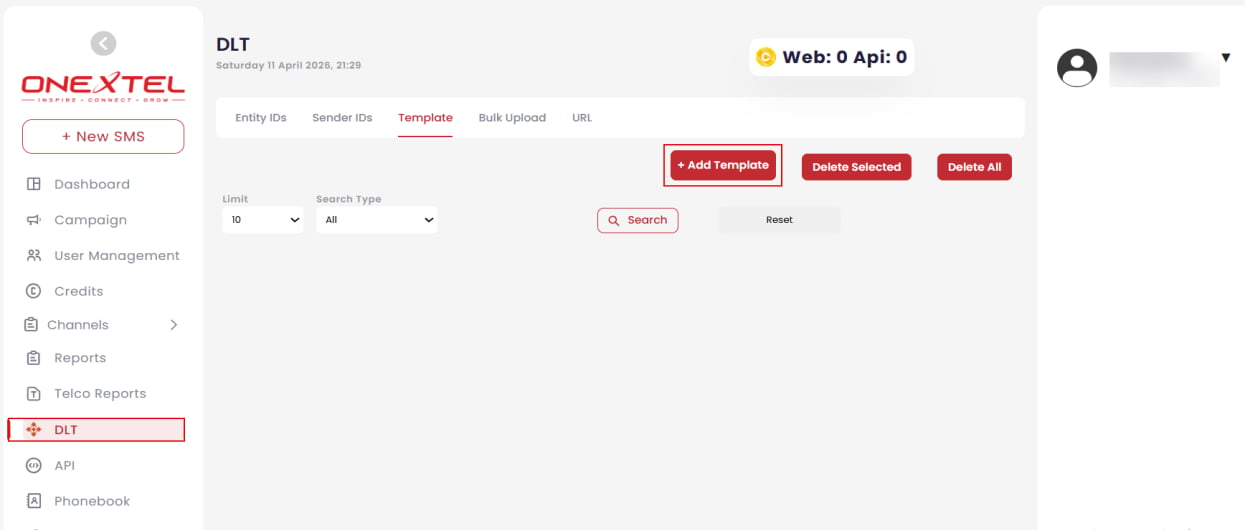
DLT Template tab
Template types
View and search templates
On the Template tab, set a Limit and Search Type, then click Search. Use Reset to clear the filters. The list shows template name, sender ID, entity ID, template ID, content, date added, and type.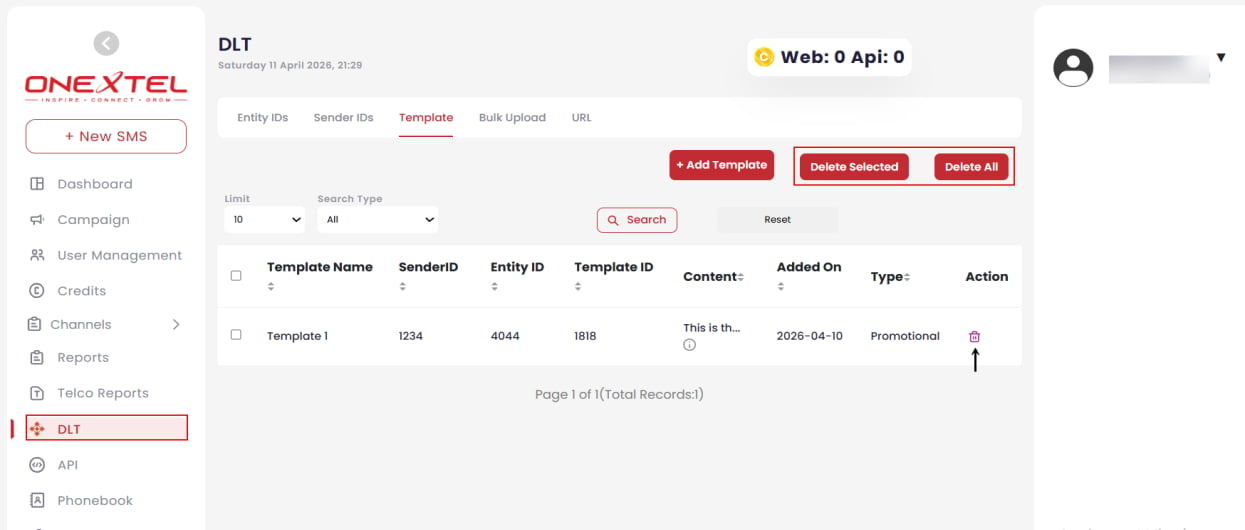
Template list
Delete templates
1
Find the templates
Click DLT → Template → Search.
2
Delete
Use the Delete icon in the Action column for one template, Delete Selected for the
templates you have ticked, or Delete All to remove every template at once.
3
Confirm
Confirm in the warning dialog.
Bulk upload
Upload many templates at once instead of adding them one at a time.1
Open the Bulk Upload tab
Click DLT, then select the Bulk Upload tab.
2
Set the entity and operator
3
Get the format right
Use Download Generic Sample File to get a correctly formatted reference file before
preparing your own.
4
Upload
Click Choose File, select your file, then click Save Templates.
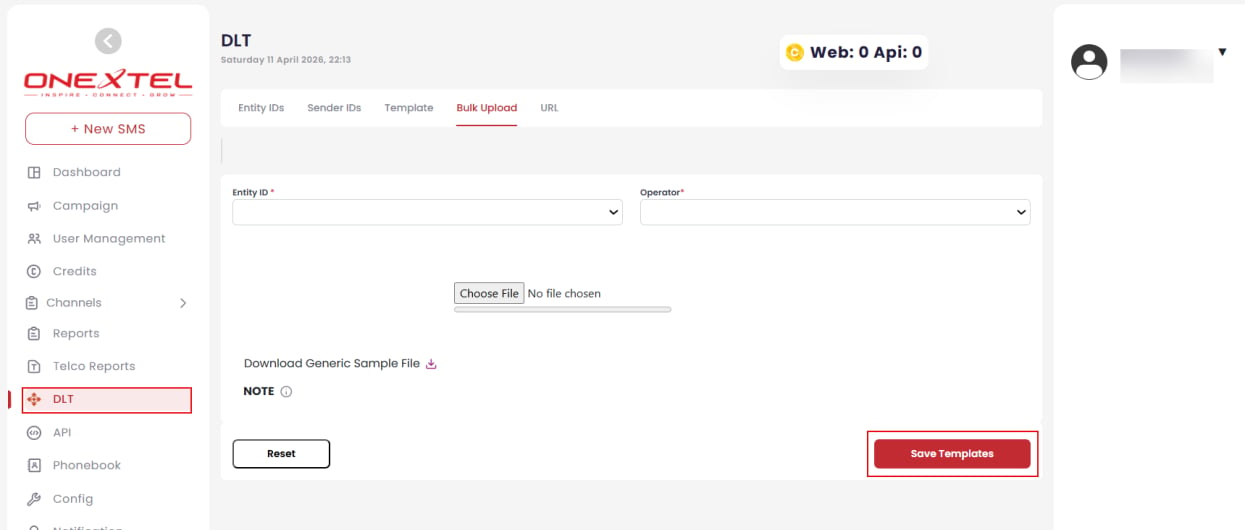
Bulk Upload tab
Short URLs
The URL tab manages short URLs — creating them, tracking their status, and managing actions against them. Link click data captured through shortened URLs is returned in the URL click callback.Related
- API keys — restrict a key to DLT-approved messages only
- Send SMS
- Platform overview