

Blacklisting is a suppression list you control. It is separate from channel-level opt-out, which
is driven by the recipient sending a keyword — see
WhatsApp opt-in / opt-out and
RCS opt-in / opt-out.
Categories
Add a category
1
Open the Blacklist Category tab
In the left pane, click Config, select the Blacklist Category tab, and click
+ Add Blacklist.
2
Enter the details
3
Add
Click Add.
View categories
Click Config, select the Blacklist Category tab, then click Show Blacklist. The list shows each category’s name, total numbers, description, and status.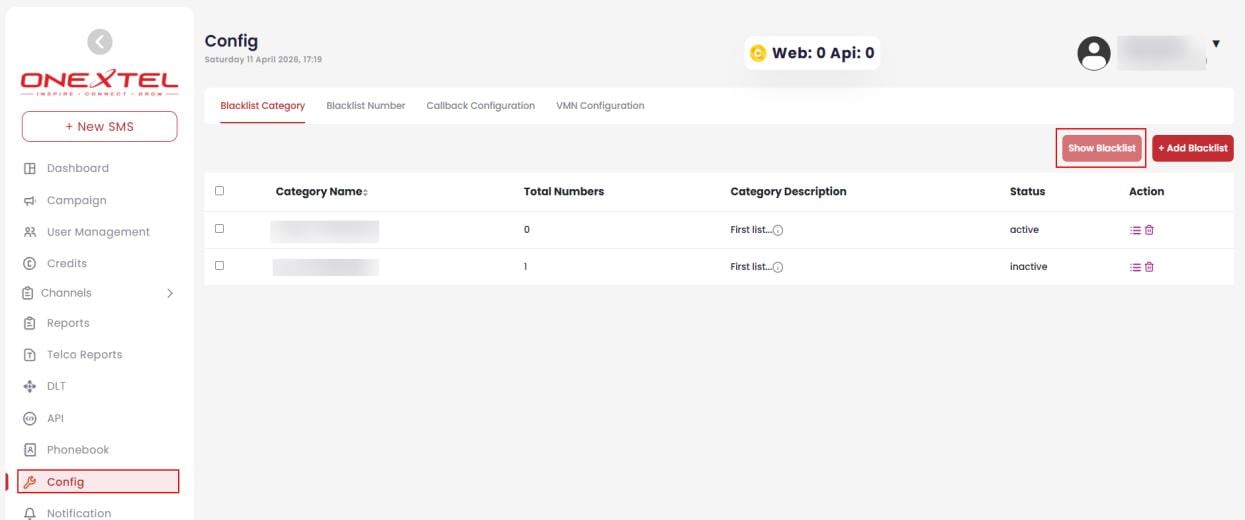
Blacklist categories
Numbers
Add a number
1
Open the Blacklist Number tab
Click Config, select the Blacklist Number tab, and click + Add Blacklist Number.
2
Enter the details
3
Add
Click Add.
Fill in the Description. Six months on, a suppression list with no reasons attached is one
nobody is willing to prune — and an over-broad blacklist quietly suppresses traffic you intended
to send.
Upload numbers in bulk
1
Open the upload view
Click Config, select the Blacklist Number tab, then click Upload Blacklist
Number.
2
Get the format right
Use Download Sample File to get a correctly formatted file before preparing your own.
3
Choose your file
Click Choose File and select the file to upload.
4
Select the category
Choose the Category the numbers should be added to.
5
Upload
Click Add Records to Category.
Download numbers
1
Open the download view
Click Config, select the Blacklist Number tab, then click Download Blacklist
Number.
2
Choose what to export
Select the Category and the File Type from the dropdowns.
3
Download
Click Download.