

View scheduled messages
1
Open All Schedule
In the left pane, click All Schedule.
2
Select the account
On the View All Schedule tab, select the TUC from the dropdown.
3
Search
Set a record Limit if needed, then click Search. Scheduled records for that account
are listed. If nothing is queued, the view reports that no scheduled data was found.
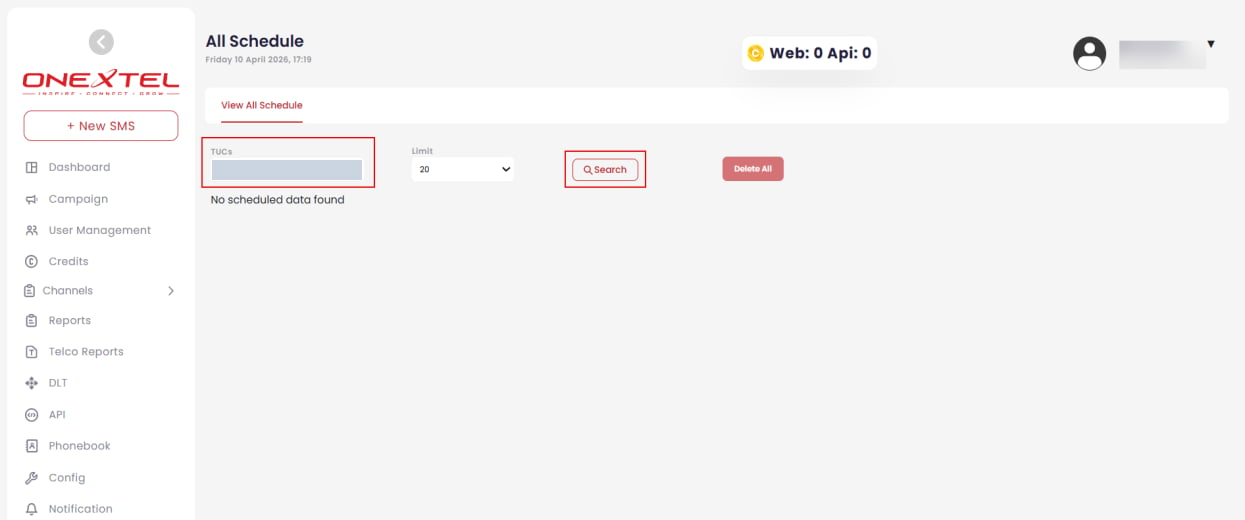
All Schedule
Cancel schedules
Use Delete All to clear the scheduled records returned by your current search.Check this page before any large or time-sensitive send. A campaign scheduled twice, or one left
queued from a test run, is invisible from inside the individual campaign screens but obvious
here.