

Callbacks are registered against a specific key. Messages sent with a key that has no
callback registered will send perfectly well and report nothing back — so if you issue a second
key for a new integration, remember to register its callbacks too.
Generate a key
1
Open the API tab
In the left pane, click the API menu, then click the API tab.
2
Generate
Click + Generate API.
3
Name and describe the key
Enter a Name and a description.Write a real description. A key labelled only by its creation date is impossible to retire
safely later, because nobody can tell what would break.
4
Set the account type
Select the Account Type for this key.
5
Set the optional controls
6
Submit
Click Submit. The platform generates the API key.
IP Whitelist is the single most effective control here — a leaked key is unusable from an
unapproved address. Set it for any key used by a fixed server. For DLT-regulated
sending in India, enable PE-TM Settings so unregistered content is
rejected at the platform rather than by the operator.
View keys
In the left pane, click the API menu, then the API tab, and click Show API. The platform lists your keys and their details.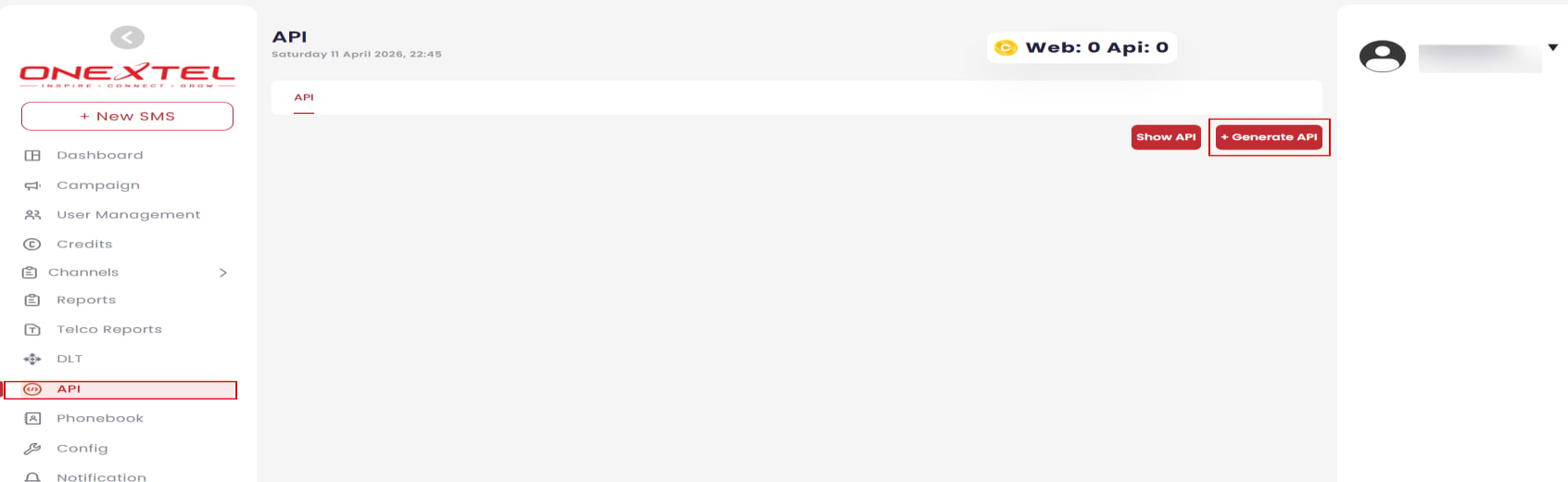
API keys
Edit a key
1
Open the API list
Click API, then Show API to display the keys and their details.
2
Open the edit action
In the Action column, click the ellipsis (…) icon.
3
Save
Make your changes and click Submit.
Delete a key
1
Open the API list
Click API, then Show API to display the keys and their details.
2
Delete
In the Action column, click the Delete icon.
3
Submit
Click Submit.