

Built-in roles
Permissions
Permissions are granted per feature, across three actions:
The features that can be controlled are: New SMS, Campaign, User Management, Credits, Reports,
Telco Reports, DLT, API, Phonebook, Notification, and All Schedule.
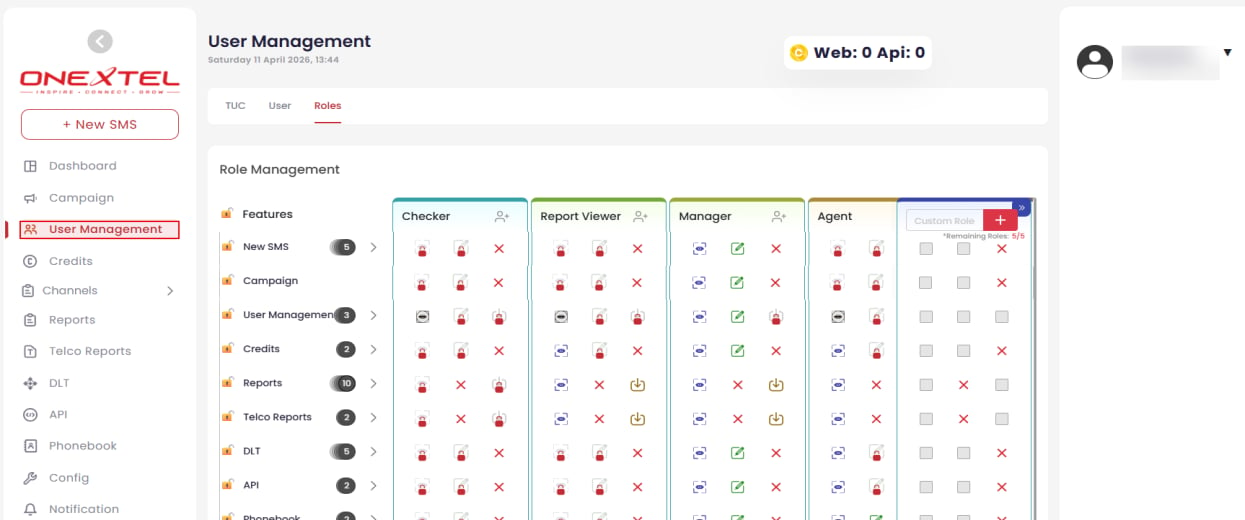
Role Management matrix
Download is deliberately separate from View. A user can be allowed to read reports on
screen without being able to export recipient data — useful where the data is sensitive and
should not leave the platform. Pair it with the Mask Phone and Mask Content settings described
in Platform overview.
Create a custom role
When none of the built-in roles fits, create your own.1
Open the Roles tab
Click User Management, then select the Roles tab. The Role Management matrix shows
each existing role as a column and each feature as a row.
2
Name the role
Enter the role name in the Custom Role section.
3
Set the permissions
For each feature, select the View, Edit, and Download checkboxes you want to
grant. Anything left unchecked is denied.
4
Add it
Click +.
5
Create
Click Create in the pop-up. A confirmation message appears once the role is saved.
Assign a role to a user
1
Find the user
Click User Management, select the User tab, and enter the username in the Search
by field.
2
Open the user
In the Action column, click the Ellipsis icon for that user.
3
Set the role
Under Roles in the User Info section, select or deselect the Role Type to grant or
remove it.
4
Update
Click Update.