

Which tabs you can act on depends on your access level. Most customers work in the User tab
only; the TUC tab requires tenant-level access and child-TUC licences. See
Platform overview.
Users
Add a user
1
Open the User tab
Click User Management, select the User tab, and click + Add User.
2
Enter the details
3
Create
Click Create.
View users
Click User Management, select the User tab, then click Search to list all users — or enter a username in the search field first to filter. The list shows each user’s username, TUC, company, and assigned role.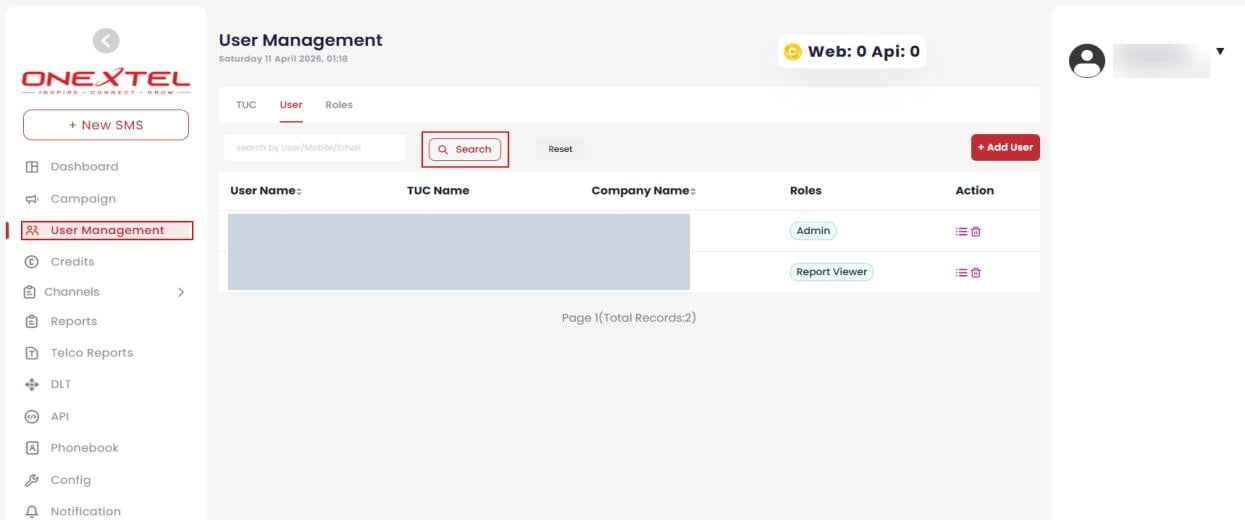
User list
Edit a user
Find the user as above, click the Edit icon in the Action column, make your changes, and click Update.Delete a user
Find the user, click the Delete icon in the Action column, then confirm in the warning dialog by clicking Delete.TUCs
A TUC is the billable account. Creating one sets its charging rules, which channels it may use, and how many sub-accounts and API instances it is licensed for.Add a TUC
1
Open the TUC tab
Click User Management, and on the TUC tab click Add TUC.
2
Set the TUC info
On Submission charges the moment the platform accepts the message. On Delivery
charges only once it reaches the recipient. The distinction matters most for promotional
traffic, where delivery rates vary.
3
Set the account privileges
Available SMS settings:
4
Set the licences
Each field shows its own maximum. Values entered must not exceed it.
5
Create
Click Create.
View TUCs
Click User Management, then Search to list all TUCs. The list shows each TUC’s name, validity in days, status, and creation time.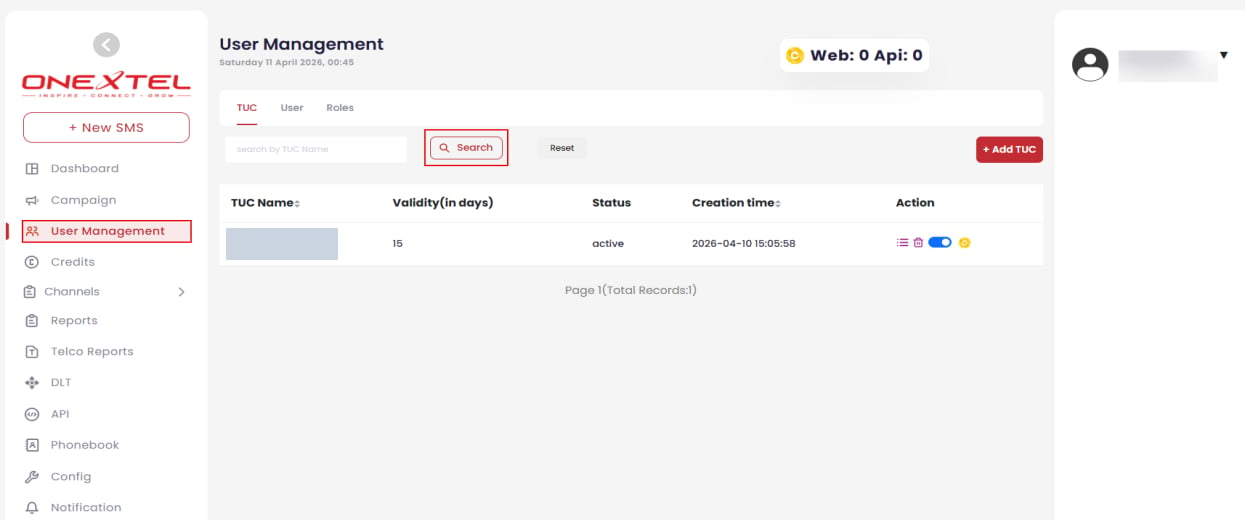
TUC list